
How to Fix Unresponsive Laptop Keyboard Keys on Windows 11 (Diagnostic & Testing Guide)
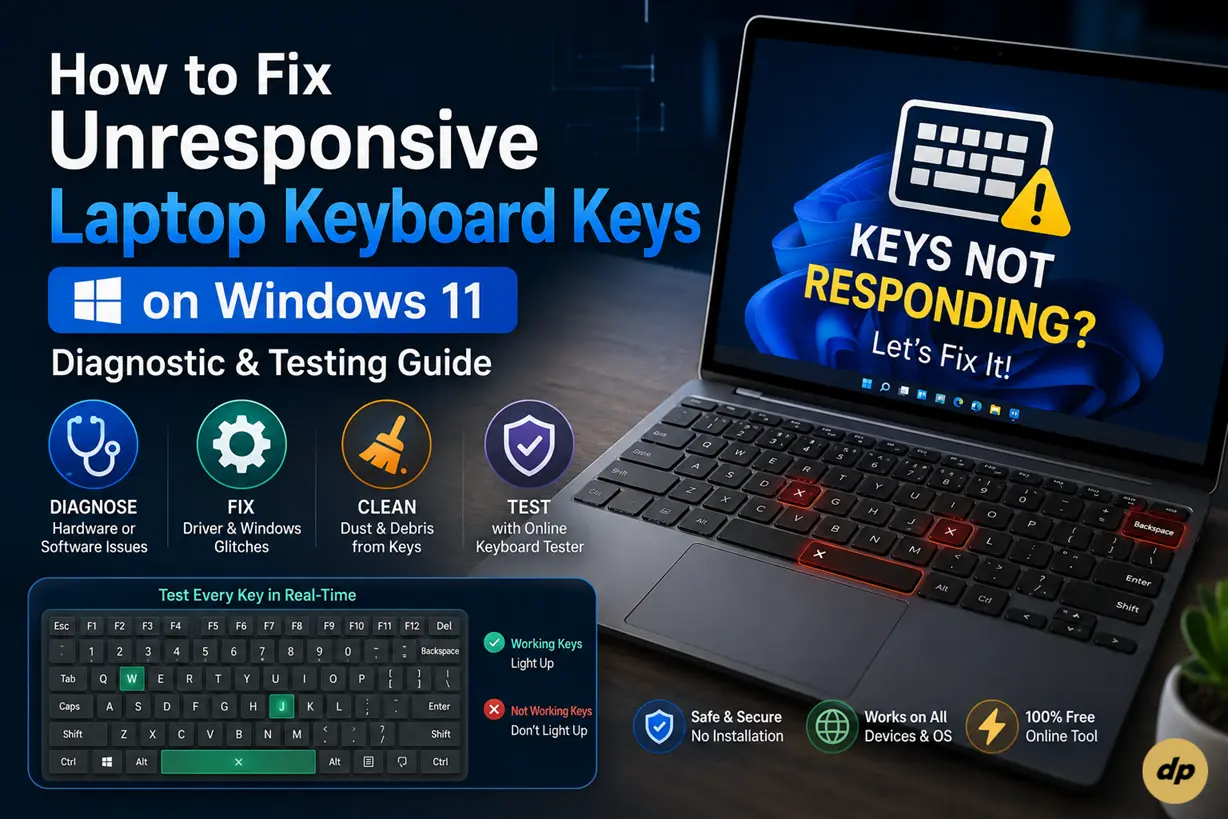
Few situations are as inconvenient as a malfunctioning laptop keyboard. The latter can occur at the worst time imaginable, when one is in the middle of typing some important information.
It can be a segment of programming code, an e-mail to a business client, or a set of numbers to be entered in a spreadsheet. In any case, several keys such as the Spacebar, Enter, Backspace, or specific letters can be pressed involuntarily and wreak havoc with the ongoing work.
When keys on the keyboard stop working on Windows 11, many users are quick to conclude that the entire built-in keyboard module is faulty and needs to be replaced with a new hardware component. In most cases, unresponsive PC keyboard keys are the result of a minor driver conflict, power management issues, dust particle ingestion into mechanical switches, or even third-party software interference.
In this guide, we will review an efficient working procedure that allows you to fix laptop keyboard keys on Windows 11. Besides, we will introduce you to an online keyboard tester tool for Windows 11/10/8/7, Mac OS, tablets, and smartphones that helps distinguish working and faulty keys on your device.
Understanding Why Laptop Keyboard Keys Stop Responding
Modern laptop keyboards are complex systems consisting of hardware components and firmware controlled by drivers. It is important to understand how keys work before trying to fix them.
A key needs to be pressed to make it register in an operating system. In the process, a keycap pushes down on either a membrane or mechanical switch. The latter has a scissor mechanism that short-circuits a contact on a flexible circuit under the keyboard plate, sending a signal to the Embedded Controller (EC).
The EC converts the interrupt signal to a scan code, which is then processed by Windows 11 drivers, displaying a corresponding character on the screen.
If any link in this chain breaks, keypresses fail to register:
- Hardware Matrix Obstructions: Hair, food crumbs, or dust particles preventing full key actuation.
- OS & Input Driver Conflicts: Outdated, corrupted, or mismatched driver files inside the Windows kernel.
- Accessibility Feature Interference: System features like Filter Keys or Sticky Keys accidentally swallowing keystrokes.
- Third-Party Software Hooks: Background utilities (like screen recorders, macro binders, or gaming overlays) intercepting key inputs.
Step 1: Diagnose Hardware vs. Software Failure with an Online Keyboard Tester
Before taking your laptop apart or spending money at a service repair station, you must determine whether the issue stems from a software configuration bug or a damaged physical key switch.
The fastest and most reliable way to verify key actuation is by running a real-time, browser-based diagnostic test using the dhimanp Keyboard Tester .
How to Run the Diagnostic Test:
- Open your web browser (Chrome, Edge, Firefox, or Safari) and launch the dhimanp Keyboard Tester.
- An interactive visual keyboard layout representing standard laptop and desktop key matrices will appear on screen.
- Press every key on your physical keyboard one by one—paying special attention to problematic switches.
- Watch the on-screen virtual keyboard react in real time:
- If the key lights up on screen: The physical key switch and keyboard matrix ribbon are working correctly! The issue is caused by background software, application key-bindings, or OS keyboard layout configurations on Windows 11.
- If the key fails to light up entirely: The signal is not reaching the browser level. This indicates physical debris blocking the switch contacts, a loose keyboard ribbon cable, or a dead mechanical switch membrane.
Watch the Keyboard Tester Diagnostic Trailer
See how real-time key matrix testing works across devices using the official dhimanp Keyboard Tester tool:

Step 2: Fix Software and Driver Glitches on Windows 11
If your browser test confirms that the physical key signal reaches hardware layers but fails inside specific software applications, try these proven operating system fixes.
Fix 1: Disable Filter Keys & Sticky Keys in Windows 11 Settings
Windows 11 includes an Accessibility feature called Filter Keys, which tells the OS to ignore brief or repeated keypresses to assist users with hand tremors. If accidentally turned on (often by holding down the right Shift key for 8 seconds), it can make keys feel completely dead or laggy.
- Press Win + I to open Settings.
- From the left sidebar, navigate to Accessibility.
- Scroll down under the Interaction section and select Keyboard.
- Locate Filter Keys and Sticky Keys, then toggle both switches to Off.
- Re-test your keys inside the dhimanp Keyboard Tester to check for instant responsiveness.
Fix 2: Reinstall Keyboard Drivers via Device Manager
Corrupted or outdated driver files can prevent key scan codes from reaching the Windows 11 kernel properly. Performing a clean driver reinstallation forces Windows to reset input communication channels.
- Right-click the Start Button (or press Win + X) and select Device Manager.
- Scroll down and expand the Keyboards section.
- Right-click your laptop keyboard entry (e.g., Standard PS/2 Keyboard or HID Keyboard Device) and select Uninstall device.
- Confirm the prompt by clicking Uninstall.
- Do not panic: your physical keyboard will temporarily stop working in Windows.
- Use your mouse or touchpad to restart your laptop (Start ➔ Power ➔ Restart).
- Upon rebooting, Windows 11 will automatically detect your built-in hardware and install a clean, factory-fresh keyboard driver.
Fix 3: Run the Built-In Windows Keyboard Troubleshooter
Windows 11 includes dedicated diagnostic scripts designed to detect hidden system service conflicts affecting human interface devices (HID).
- Open Settings by pressing Win + I.
- Stay on the System tab, scroll down, and select Troubleshoot.
- Click on Other troubleshooters.
- Locate Keyboard in the list of diagnostic tools and click Run.
- Allow Windows to scan for background service conflicts and follow any automated fix prompts.
Fix 4: Check for Regional Keyboard Layout Mismatches
Sometimes, keys do not produce the expected character (e.g., pressing @ prints ") because your OS keyboard layout differs from your physical key layout.
- Open Settings ➔ Time & language ➔ Language & region.
- Ensure your preferred language matches your physical keyboard (e.g., English (United States) or English (India)).
- Click the three dots next to your language and select Language options.
- Verify that the correct physical layout (such as QWERTY) is listed under Keyboards.
Step 3: Fix Physical Hardware and Dirt Obstructions
If the online keyboard tester tool showed zero response for specific keys across all applications, physical obstructions or contact alignment issues are likely to be to blame.
Fix 1: Clean Under Keycaps with Compressed Air & Isopropyl Alcohol
Over months of continuous use, skin oil, hair, dust, and food crumbs collect beneath laptop keycaps. This debris physically prevents the rubber dome contact from fully touching the lower circuit plate.
- Power Down Safely: Turn off your laptop completely and unplug the power charging cable.
- Angle the Chassis: Hold your laptop upside down or tilt it forward at a 45-degree angle over a clean table.
- Blow Away Debris: Use a can of compressed air fitted with a thin straw nozzle. Spray quick, controlled bursts beneath and around the edges of unresponsive keys to dislodge trapped lint.
- Clean Contacts (Optional): If a key switch remains sticky due to dried liquid, apply a single drop of high-purity (99%) Isopropyl alcohol onto the switch edges using a cotton swab. Allow 10 minutes to dry completely before turning the system back on.
- Re-test key actuation using the dhimanp Keyboard Tester.
Fix 2: Emergency Response for Liquid Exposure & Spills
If coffee, soda, or water was recently spilled onto your keyboard, liquid residue can bridge circuit traces, causing keys to stop working or register phantom double-taps.
- Act Immediately: Press and hold the power button to shut down your laptop instantly. Do not wait for standard Windows shutdown routines.
- Disconnect Power: Unplug external power cables, USB drives, and wireless dongles immediately.
- Invert the Laptop (Tent Mode): Open your laptop display screen fully and place the device upside down on a dry towel in a V-shape ("tent mode"). This prevents liquid from seeping further into the motherboard.
- Dry Thoroughly: Leave the laptop inverted in a warm, well-ventilated room for at least 24 to 48 hours. Do not use a hot hairdryer, as extreme heat can warp delicate plastic keycaps and rubber dome switches.
Universal Cross-Platform Compatibility
One major advantage of diagnosing keyboard issues using a web utility like the dhimanp Keyboard Tester is true platform independence. You don't need to download heavy desktop executables or install risky browser extensions.
Whether you are troubleshooting a legacy Windows 7 desktop, a modern Windows 11 ultrabook, an Apple MacBook, or a tablet with an external Bluetooth folio, the testing matrix works identically across operating systems:
| Platform / Operating System | Diagnostic & Testing Capability | Software Download Needed? |
|---|---|---|
| Windows 11 / 10 / 8 / 7 | Full keypress, shortcut combo & modifier key matrix testing | No (Runs in browser) |
| macOS (MacBook / Mac Mini) | Command, Option, and Mac function key layout validation | No (Runs in browser) |
| iPads & Android Tablets | External Bluetooth, USB, & Smart Keyboard folio testing | No (Runs in browser) |
| Linux (Ubuntu / Fedora) | Wayland & X11 input driver verification | No (Runs in browser) |
When Is It Time to Replace the Laptop Keyboard?
If you have executed every troubleshooting step above—disabled accessibility hooks, reinstalled drivers, cleaned physical keycaps, and verified zero response on the dhimanp Keyboard Tester —the issue points to an internal hardware failure.
Common reasons for permanent hardware failure include:
- Frayed Matrix Ribbon Cable: The flex cable connecting the keyboard assembly to the motherboard ZIF socket has come loose or fractured.
- Burnt Circuit Traces: Short circuits from past liquid spills breaking conductive silver tracks.
- Worn Membrane Springs: Physical rupture of the inner silicone rubber dome switch.
In such cases, replacing the internal keyboard module or using an external USB/Bluetooth keyboard will permanently restore your productivity.
Conclusion: Diagnose First, Repair Second
Dealing with unresponsive laptop keys on Windows 11 does not have to be an expensive or frustrating experience. By taking a methodical approach—starting with a free, instant browser test using an online keyboard tester tool for Windows 11, 10, 8, 7, Mac, and tablets —you can quickly identify whether you are dealing with a simple software glitch or a physical switch issue.
Before booking an unnecessary service appointment or buying replacement parts, open the dhimanp Keyboard Tester to test your keys and restore your typing productivity today!
Frequently Asked Questions (FAQ)
Hardware Diagnostics & Repair
1. How do I know if my laptop key issue is software or hardware related?
Using an online keyboard tester tool for Windows 11, 10, Mac, or tablet lets you test key actuation directly at the browser level. If the key lights up on the virtual matrix, the hardware is working and it is likely a software glitch. If it fails to register entirely, it indicates a hardware switch or physical ribbon failure.
2. Does the dhimanp Keyboard Tester work on macOS, iOS, and Android tablets?
Yes. The dhimanp Keyboard Tester is fully cross-platform. It functions seamlessly as an online keyboard tester tool across Windows 11, 10, 8, 7, Mac OS, iPads, and Android tablets.
3. What should I do if updating the keyboard driver on Windows 11 doesn't work?
Try uninstalling the keyboard device under Device Manager and rebooting your laptop. Windows 11 will automatically re-install a fresh generic driver upon startup. Also, check for physical debris beneath the keycap.
4. Is it safe to clean beneath laptop keycaps with compressed air?
Yes. Hold the compressed air can at a 45-degree angle to blow away dust, breadcrumbs, or lint trapped under the key switch membrane without damaging the delicate mechanical scissor hinges.