
How to Test Your Keyboard Online (Complete Guide)
Imagine typing an email, writing under a tight deadline, or playing a video game when suddenly the keyboard starts malfunctioning. This could mean some keys might be unresponsive, some might respond late, or maybe none at all.
It might be hard to tell what the cause behind this situation may be, because it could be a hardware, software, or driver-related issue.
However, instead of physically disassembling the keyboard or downloading more software on your computer, there is a simple keyboard tester that allows you to detect any issues with your keyboard in a couple of minutes.
It operates right from your web browser.
Why You Need to Test Your Keyboard Online
Dust, dirt, and crumbs may affect the functioning of certain keys over time. However, before blaming the keyboard for a malfunction, one should run an online keyboard test to establish the exact status of the keys.
- See What Is Working and What Isn't: Just press any key and see whether the key works with this online tool. If, for instance, you suspect that the F9 key does not work, press it to test.
- Simple and Easy: Opening and disassembling a laptop or keyboard to find out what the problem is can be complicated and dangerous for some keyboard parts. With online testing, one can easily check the keyboard without opening or disassembling anything.
- Check Several Keys at the same time: Certain activities, especially gaming, require pressing several keys simultaneously. Such tests help to make sure that your keyboard will be able to register simultaneous keystrokes. In the case of a racing game, for instance, one needs to press the W, A, or D keys simultaneously to control a vehicle.
Introduction to the dhimanp Keyboard Tester
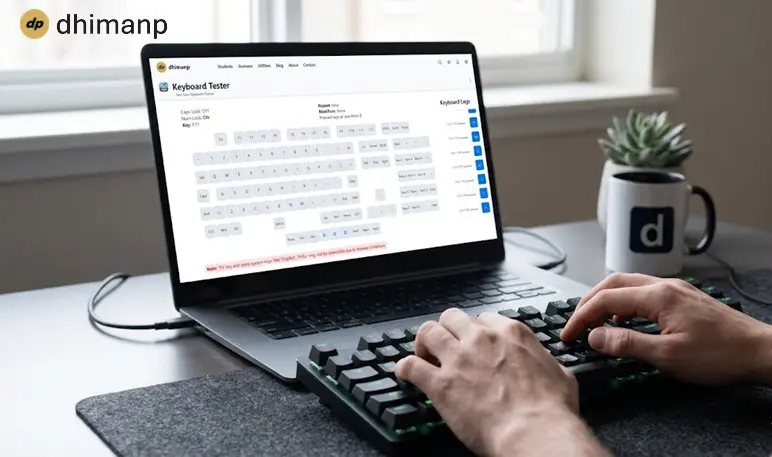
dhimanp Keyboard Tester is a free online application that will help you test the functionality of your keyboard keys.
All you have to do is visit the testing website and press a key. The pressed key lights up automatically on the webpage to identify non-working keys.
This tool can be used by gamers, writers, programmers, and any other keyboard users.
There is no installation process involved. Also, no registration is needed. No personal information is required from your side; thus, it’s safe and easy to use. It runs on all operating systems, including Windows, macOS, and Linux.
The Problem of Keyboard Ghosting and Key Rollover
Have you noticed that when you press several keys at once to play the game, some keys might not be recognized or might not work? This is due to the phenomenon called keyboard ghosting or key rollover limitations.
What Is Keyboard Ghosting? It means that your keyboard does not recognize several keys pressed at once or recognizes the wrong key from those pressed.
What Is N-Key Rollover (NKRO)? N-key rollover enables your keyboard to recognize all the keys pressed at the same time. It is very helpful for gamers and users of keyboard shortcuts.
How to Check for Ghosting and Key Rollover?
To check your keyboard for these problems, all you have to do is open the keyboard tester and press several keys simultaneously. If some of the keys do not light up or are not recognized by the program, it means your keyboard has problems registering simultaneous key presses.
Keyboard Tester Features
- Watch Your Key Presses Instantly: Any key you press will illuminate on the screen instantly, allowing you to know if it works or not.
- Test All Varieties of Keys: Test all the letters and number keys, Shift, Ctrl, Alt, function keys (F1–F12), and media keys.
- No Setup Required: The keyboard tester works right inside the browser without downloading anything.
- Anonymously and Confidentially: No registration is required to use the keyboard tester; no personal data needs to be provided.
- Use it on Many Computers: This keyboard tester works on Windows, Mac OS, and Linux OS, from laptops to PC and gaming keyboards.
Steps to Test Your Keyboard
Below is a full step-by-step guide to test your keyboard online.
- Step 1: Open the keyboard tester tool on your device by navigating to Keyboard Tester.
- Step 2: Now, press the key that is not working according to you, for example, F9.
- Step 3: Observe the screen (virtual keyboard). If the key is working, you will hear a sound effect, and the corresponding key on the virtual layout will turn Green. But if nothing happens, then that key is not working.
- Step 4: Repeat step 3 for other keys too and observe the same
- Step 5: If all the keys got their respective changes in the virtual keyboard, then congratulations, your keyboard is functioning 100% correctly. If certain keys fail to respond, your keyboard may require cleaning or repair.
So, by following these 5 simple steps, you can check whether your keyboard is working or not.
Keyboard Issues and Their Solution Methods
If the results of your keyboard test indicate that there is an issue, you should know that many typical keyboard problems have solutions that require several simple actions.
- One Key Isn't Working: Sometimes, dust or dirt that gets under the key makes it not work well. You can clean the surroundings of the problematic key and try to blow compressed air to remove the dirt.
- All the Keys in One Row Aren't Working: If several keys on one row stopped functioning correctly, it means that you have a problem either in your keyboard or in your computer's driver. Try to restart your computer and look for system updates. If the problem persists, then you should consider having your keyboard repaired professionally.
- The Key Is Being Pressed Twice: If pressing a key once leads to the typing of two similar letters, it means that this key is either dirty or damaged. You should clean the key using rubbing alcohol.
What Makes dhimanp Apps Special?
dhimanp Apps is an easy way for you to solve everyday problems using simple online tools. These tools are made with the intention of being fast, simple, and easy to use, regardless of your technical skills.
To be able to use the tools, you do not have to download any special software or be a tech expert – simply use the online tool and follow its guidelines.
Your privacy is very important to us, so we have our own privacy policy in place, which means we do not give out your personal data to any third-party companies.
In case of any issues you encounter with a tool or any suggestions for future features, you can contact us via the website.
Conclusion
Keyboard testing through the internet is a fast and convenient way to discover if your keys are functioning properly. With dhimanp Keyboard Tester, you can test your keyboard directly from your web browser without downloading any software.
No matter whether you type on your keyboard in order to write your papers, code your programs, or play games, a good keyboard helps to simplify any activity.
You may just bookmark the dhimanp website and return to it when necessary.