
How to Print Custom WhatsApp Business QR Codes with Logos for Store Counters
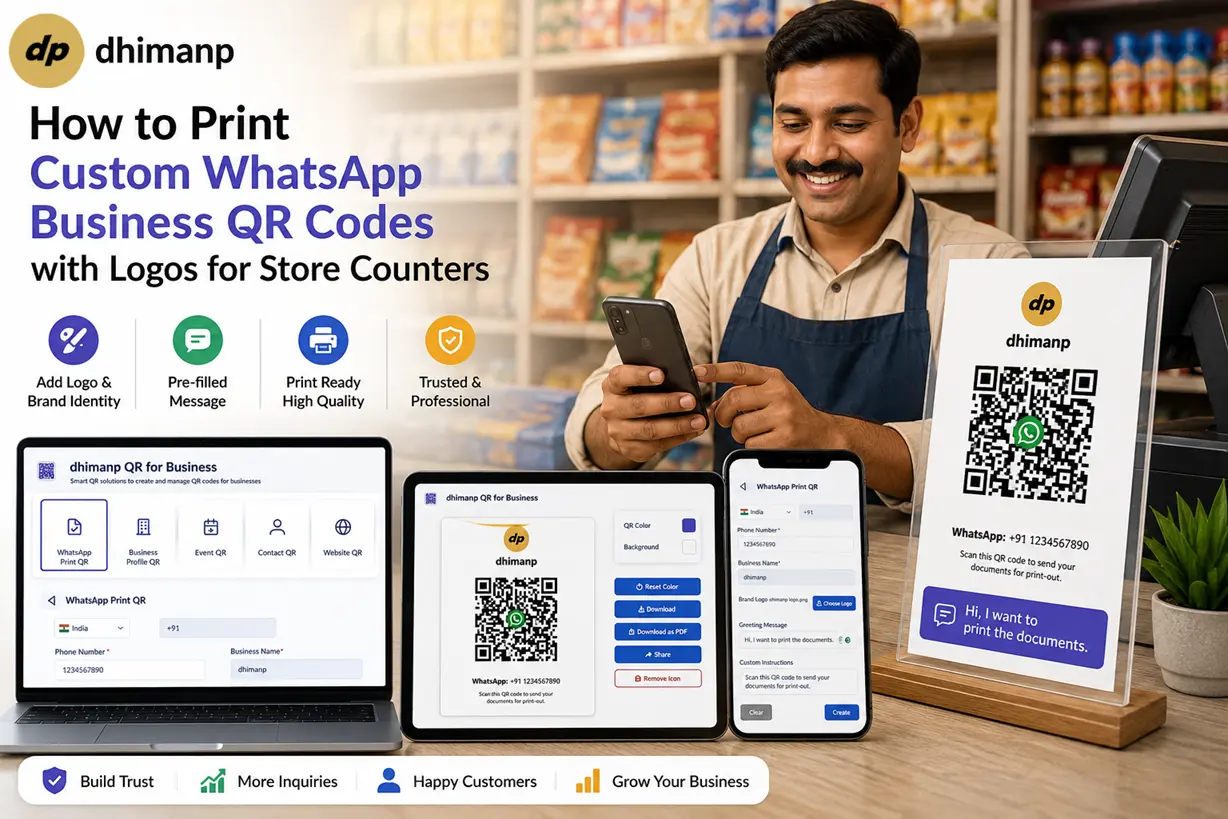
The point of sale has become a crucial part not only for completing transactions but for establishing relationships with customers in today’s world of retail and services. If you own a print shop, a boutique, a pharmacy, or a busy café, providing customers with an easy opportunity to reach out to your business is vital.
Although WhatsApp Business has proven itself as the best tool for customer interaction, many store owners continue to use primitive tools for that: shouting out 10 digits of mobile numbers through a noisy counter, showing handmade signs, or using non-branded black and white QR codes.
With the creation of a custom-made QR code for WhatsApp Business that includes your brand logo along with greetings and style, you can avoid communication barriers, improve the look of your store, and increase customer trust.
In this detailed guide, we will learn about the importance of branded QR codes on counters, understand how to create print-ready QR codes with the help of the dhimanp QR for Business app, and know more about counter standee printing and placement.
Why Generic QR Codes Fail on Store Counters
Just enter any local market, and you’ll observe that the counter is stuffed with pieces of paper carrying QR codes on them. However, the use of QR codes brings various demerits to the storefronts:
1. Absence of Brand Trust and Security Issues
As malicious QR code manipulation or phishing increases, customers should naturally doubt whether it is safe to scan any random black-and-white anonymous squares. Your company QR code with your official brand logo right in the middle and your business colors will reassure consumers that you are sending them to your business page.
2. Frictionless Experience and Contextual Awareness
A standard WhatsApp link opens a chat with no context at all – the client will be left to wonder what to write in it next. Will s/he have to introduce himself/herself? State the order number? With a custom QR code, you can add a pre-filled greeting message like " Hi, I want to print the documents.", which would require the consumer to do nothing but press 'send'.
3. Bad Looks
The counter of your business is a place where you represent yourself physically. It is not very professional if it has some hastily created piece of paper with an unformatted QR code on it. You can create a beautiful QR code that will fit nicely into an acrylic stand or standee, wooden blocks, or vinyl stickers.
Getting Started with dhimanp QR for Business
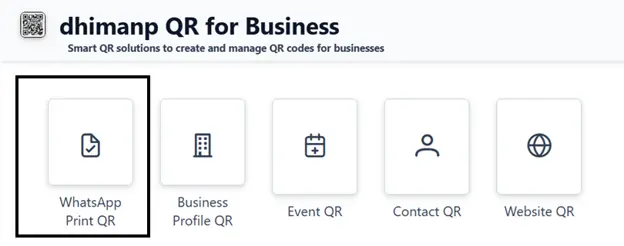
To overcome the above-mentioned challenges, the dhimanp QR for Business web application offers a range of dedicated smart QR services as per business needs:
- WhatsApp Print QR: Specifically built for print shops, cyber cafes, and retail counters that need rapid document exchange or quick customer intake.
- Business Profile QR: Provides well-structured company profiles that include company slogans, contact information, and description.
- Event QR: Generates well-structured invitations for events, including start and end times.
- Contact QR & Website QR: Provides encapsulated digital vCard or web destinations, respectively.
Now let us see how the creation process unfolds for creating a customized WhatsApp QR code with a logo for your counter.
Step by Step: Creation of a Branded WhatsApp Business QR Code
A branded and logo-integrated WhatsApp QR code can be created in less than two minutes through the dhimanp QR for Business.
Step 1: Visit the WhatsApp Print QR Generator
Go to the dhimanp QR for Business Dashboard and click on the “WhatsApp Print QR” feature, which is highlighted with a black rectangular shape.
Step 2: Add Your Business Identification Details
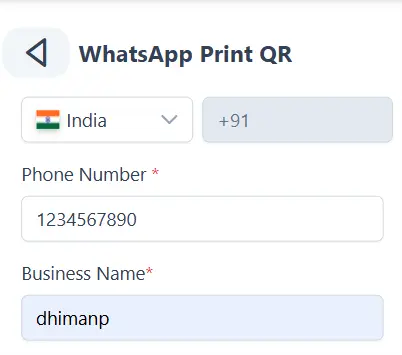
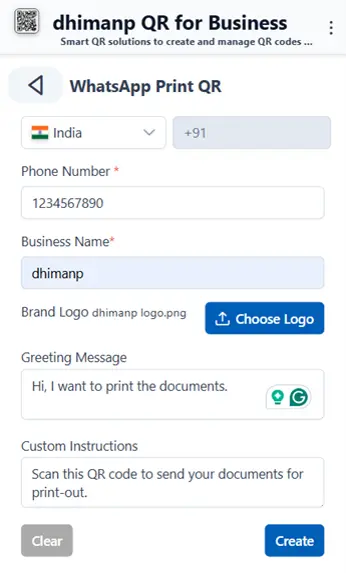
Choose your country using the drop-down list (for example, +91 in the case of India) and enter your active phone number on WhatsApp Business. Enter your complete store name in the Business Name box.
Step 3: Add Your Brand Logo
Press the 'Choose Logo''button to add your logo, which should be high-resolution. Adding your brand logo in the center of the matrix helps in establishing brand recognition each time the code is scanned by the customer.
Step 4: Set up the Pre-Filled Greeting Message
This Greeting Message is the automatically generated text that will pre-fill the customer’s WhatsApp text bar once they scan it.
- For Print Shops and Xeroxing Counters: Use " Hi, I want to print the documents." as the Greeting Message.
- For Retail and Product Related Queries: Use "Hi, I am at your counter and have a query regarding one of your products." as the Greeting Message.
- For Boutiques and Services: Use "Hi, I would like to get your digital catalog and promotions." as the Greeting Message.
The default greeting message is “Hi, I want to print the documents. ”, so you can edit this message according to your business type or category.
Step 5: Provide Customer Instructions
This Custom Instructions field will be filled with instructions for customers. These instructions should tell the customers exactly what will happen when they scan the standee with their phones:
"Scan this QR code to send your documents for print-out instantly." This is the default instruction that is provided by the app, but you can edit or update this instruction according to your requirements.
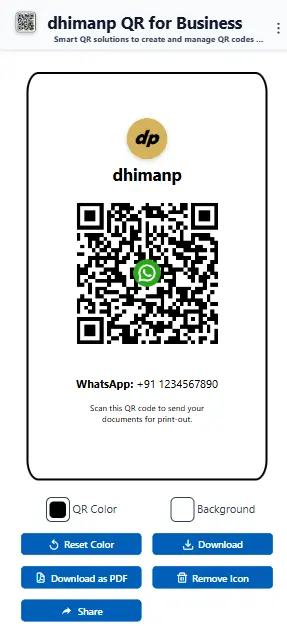
Step 6: Fine-tuning Visual Style and Colors
When you click the “Create” button, you will be directed to the customizability canvas. At this point, you may proceed to adjust the style and colors of your created QR code:
QR Color: Customize the main foreground module color to fit your business's main color scheme (like dark navy or dark red). It should have good contrast with the background.
Background Color: Use a contrasting, clean background (preferably white #FFFFFF or very light cream) to ensure that your code is readable on all smartphones.
Reset Color: Go back to default contrast settings instantly.
Step 7: Export High-Resolution Files for Print
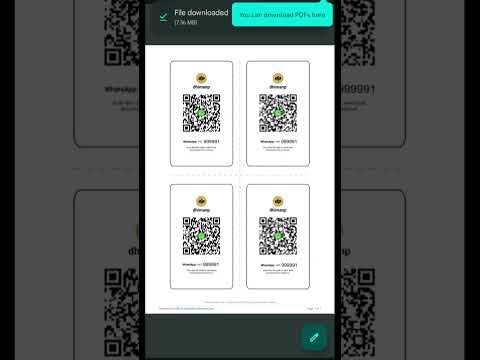
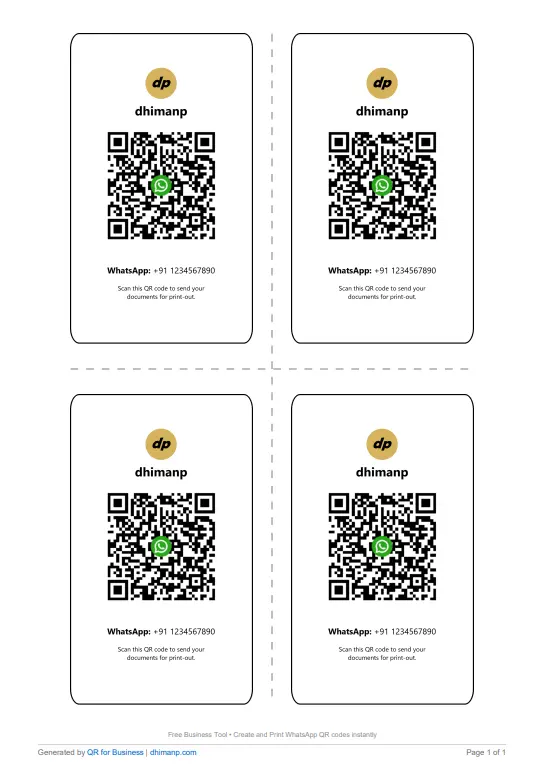
Click the “Download” button to download the image file of your design elements, or click “Download as PDF” to create a print-ready layout PDF file compatible with commercial printing press machines.
If you have any doubts regarding this app, please contact us .
Use Cases for WhatsApp Business QR Codes
Specialized WhatsApp Business QR codes integrate easily into a wide range of applications:
| Retail / Business Sector | Primary Counter Challenge | Configured Greeting Message | Business Outcome |
|---|---|---|---|
| Print Shops & Copy Centers | Congested counters, manual phone number typing for file sharing | "Hi, I want to print the documents." | 80% faster document intake, eliminates counter queue bottlenecks. |
| Boutiques & Clothing Stores | Customers leave without leaving contact info | "Hi, please send me your latest collection catalog." | Converts walk-in store visitors into persistent digital contacts. |
| Pharmacies & Diagnostics | Complex prescription reading and booking | "Hi, I want to send a prescription photo for order preparation." | Enables pre-packing of medicines before customer arrival. |
| Restaurants & Cafés | Physical menu hygiene and feedback collection | "Hi, I would like to view the menu and share feedback." | Direct communication channel for customer reviews and loyalty offers. |
Best Practices for Printing and Displaying Store Counter QR Codes
To ensure maximum scanning efficiency and longevity, follow these practical layout and printing guidelines:
1. Always Keep Your Print Size Optimal
For your store counter, if the customer stands about 1 to 2 feet away, then the matrix of your QR code itself needs to be no smaller than 2 x 2 inches (5 x 5 cm). But if you embed your QR code in the poster mounted behind the counter, increase the size to 6 x 6 inches (15 x 15 cm).
2. Contrast is Crucial
Never invert QR codes' colors (i.e., light modules on a dark background). Instead, always use dark foreground elements against the ultra-light/white background so that even the lowest-end phone camera would decode the matrix instantly.
3. Use Standees of Acrylic Wood
Your printed QR code needs protection against any liquid spills, smears, and sunlight. So, make sure your printed PDF is mounted in a proper, clean A5/A6 acrylic T-standee.
4. Don’t Ever Forget the CTA!
Never print out a naked QR code without any instruction. For example,
"Want to print something? Then just scan this to WhatsApp your docs to us!"
Enhance Your Store Counter Digital Interaction
The process of revolutionizing the way walk-in customers communicate with your brand does not demand that you spend heavily on hardware POS systems or software integrations. With the use of the WhatsApp Print QR feature available within the dhimanp QR for Business platform, you will be able to turn your store checkout counter into an efficient, digital-focused interaction center.
Generate your own branded WhatsApp Business QR code now and download the high-resolution PDF!
Frequently Asked Questions (FAQ)
1. Why should I use a custom WhatsApp QR code with my store logo instead of a plain QR code?
Plain black-and-white QR codes offer no brand identity and can look suspicious to security-conscious customers. Adding your store logo and brand colors increases customer trust, boosts scan rates by up to 30%, and reinforces brand recognition directly at your checkout counter.
2. How does the WhatsApp Print QR feature work in dhimanp QR for Business?
The WhatsApp Print QR feature lets you input your phone number, business name, brand logo, greeting message (e.g., 'Hi, I want to print the documents'), and custom instructions. When customers scan it at your counter, it automatically opens WhatsApp with the pre-filled message, allowing them to send files or inquiries immediately.
3. Can customers send documents for printing through the WhatsApp QR scan?
Yes! By setting up a custom greeting like 'Hi, I want to print the documents,' customers can launch a direct conversation with your business phone number upon scanning, attach their PDF or image files, and send them to your counter instantly.
4. What formats can I export the custom QR code in for physical printing?
The dhimanp QR for Business web application allows you to download your customized QR code directly as a high-resolution image file or as a print-ready PDF document suited for counter standees, flyers, and wall posters.